Set up your organisation
Organisation holds your name, logo, a line about you and your links; every event shows them.
For organisers. You need an account first.
Partly in the app.Set-up happens at sign-up and on Organisation; a four-step set-up with a preview of your card is designed, not in the app yet.
Step by step
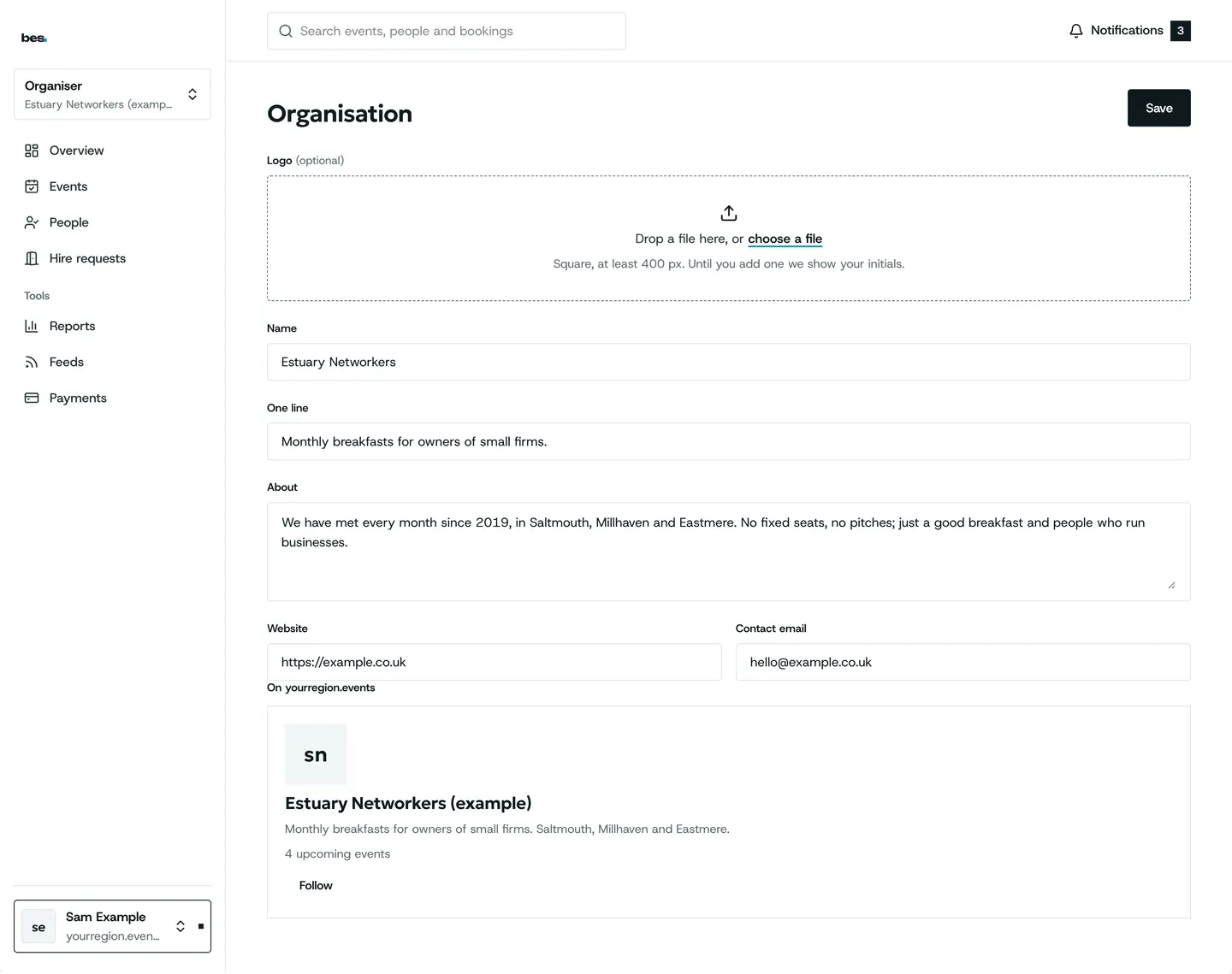
Step 1: Your organisation
This is how you appear on the region’s site. Add your logo and one line about what you do.
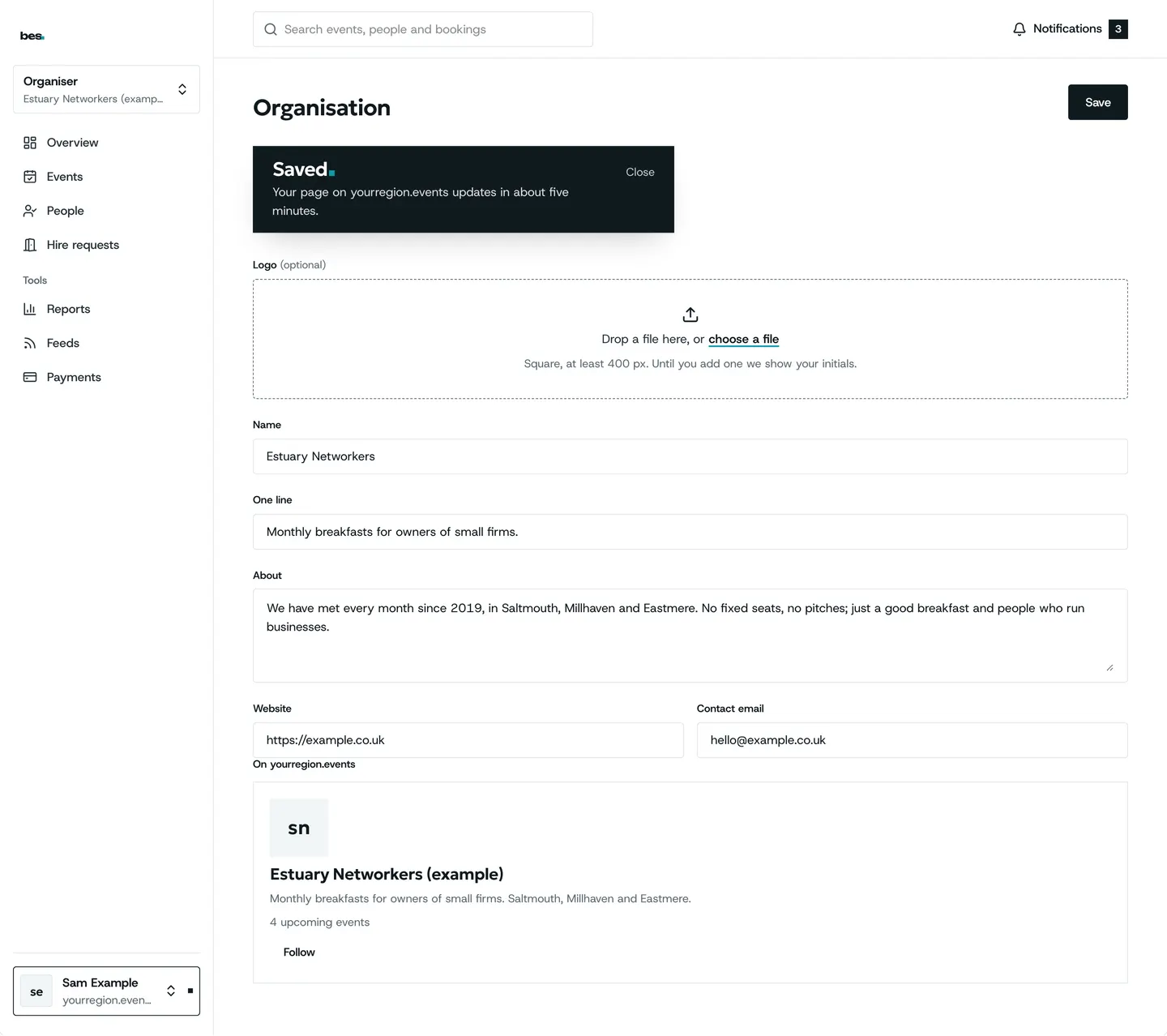
Step 2: Saved
Save, and every event of yours shows it.
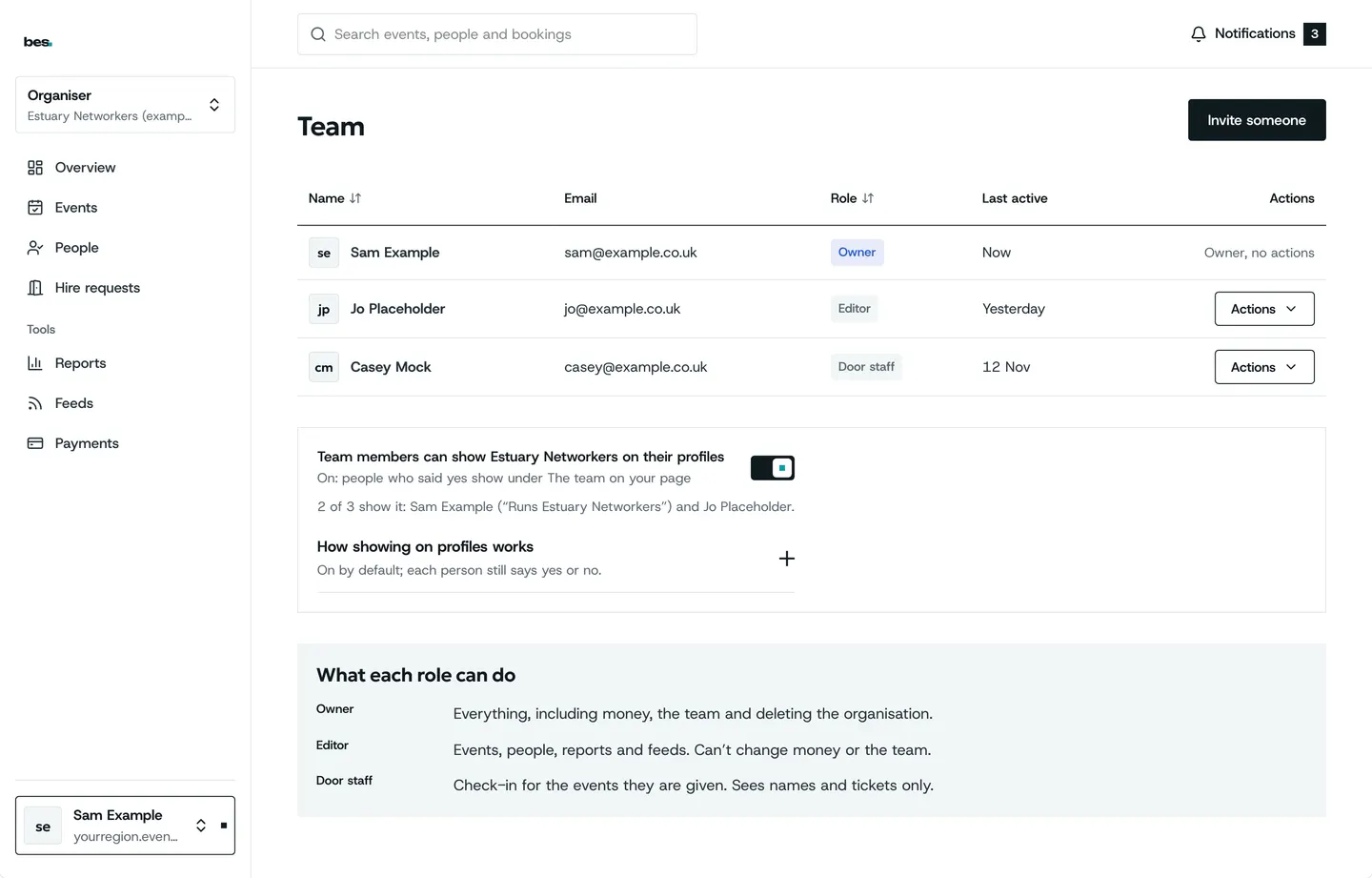
Step 3: Invite your team
Invite the people who help you. Give door staff the door role: they see check-in and nothing else.
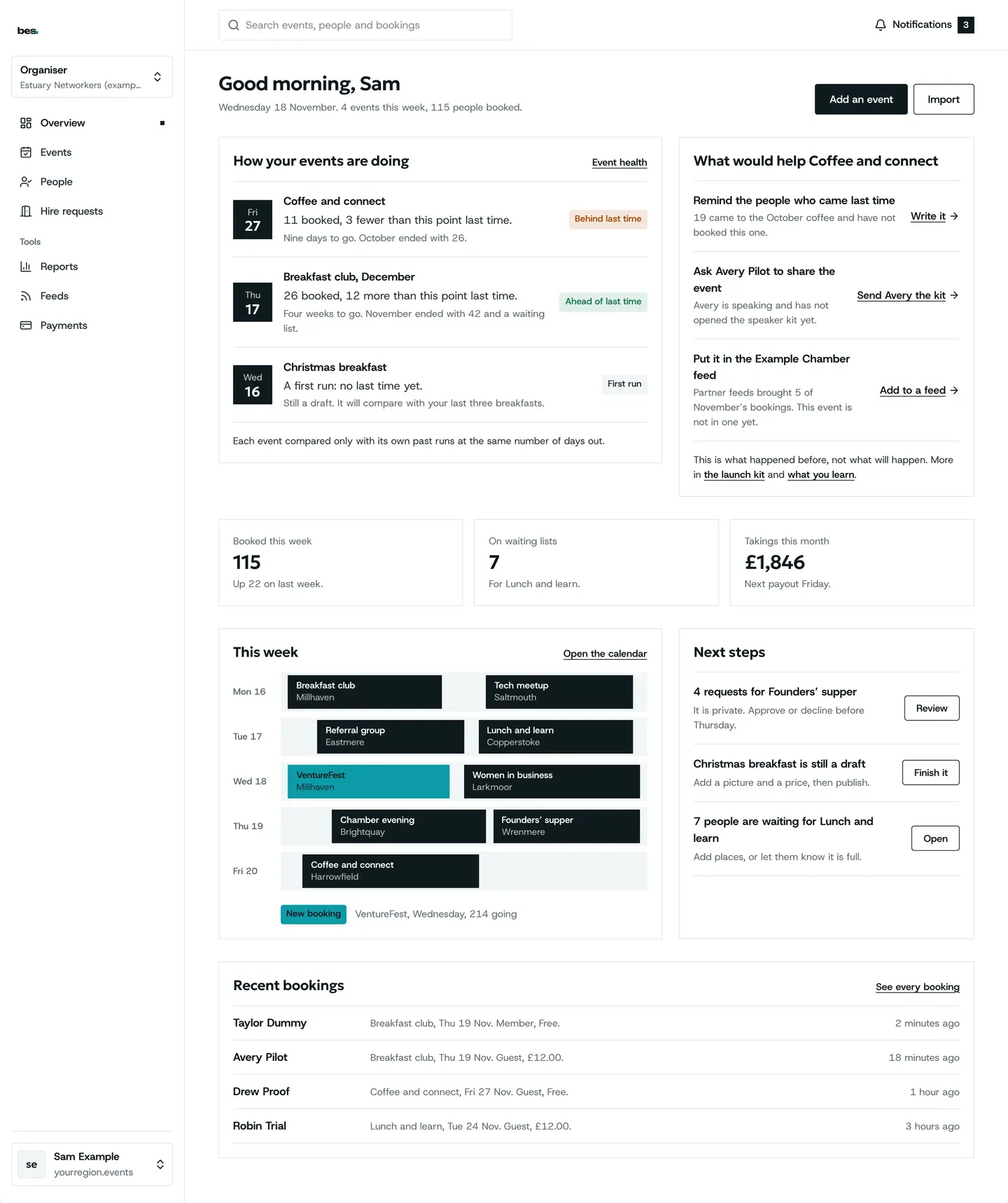
Step 4: What is next
Your home page ticks these off as you go. Next: publish your first event.
Tips
A square logo works best: it is shown small.
Write the line about you as people would search for you.
Good to know
Roles can be changed at any time from Team.
Someone invited who has no account makes one when they accept.
What’s next
- NextInvite your teamTeam, then Invite: give their email and a role, and they get a link.Read the guide
- RelatedClaim your organisationIf your organisation is already listed, choose Claim on its page; the platform’s team checks and hands it over.Read the guide
More about this on Running your platform, one of our feature pages.
Was this helpful?
Reviewed 12 November 2026 and checked against the app that day. General information as at 12 November 2026, not legal, tax or financial advice. Screens show example data.