Running events
Your organisation, your team, and every way to list an event.
19 guides in 3 parts.
/
Try , , . Press / to search from anywhere on the page.
Your organisation and team
5 guides
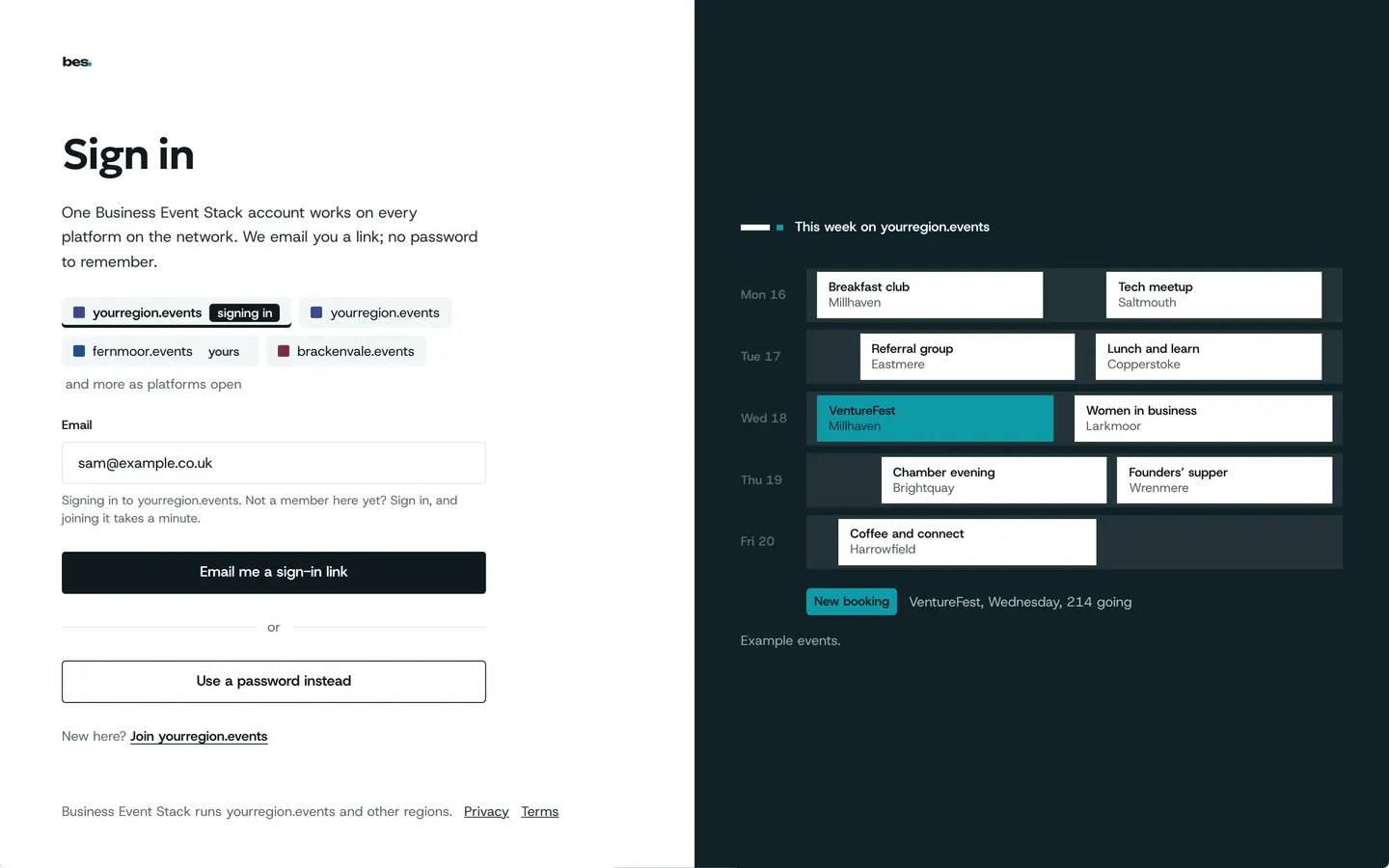
- Start running eventsSign in, name your organisation, and your home lists what to do first.For organisers. 3 steps.Read the guide
- Set up your organisationOrganisation holds your name, logo, a line about you and your links; every event shows them.For organisers. 4 steps. Partly in the app.Read the guide
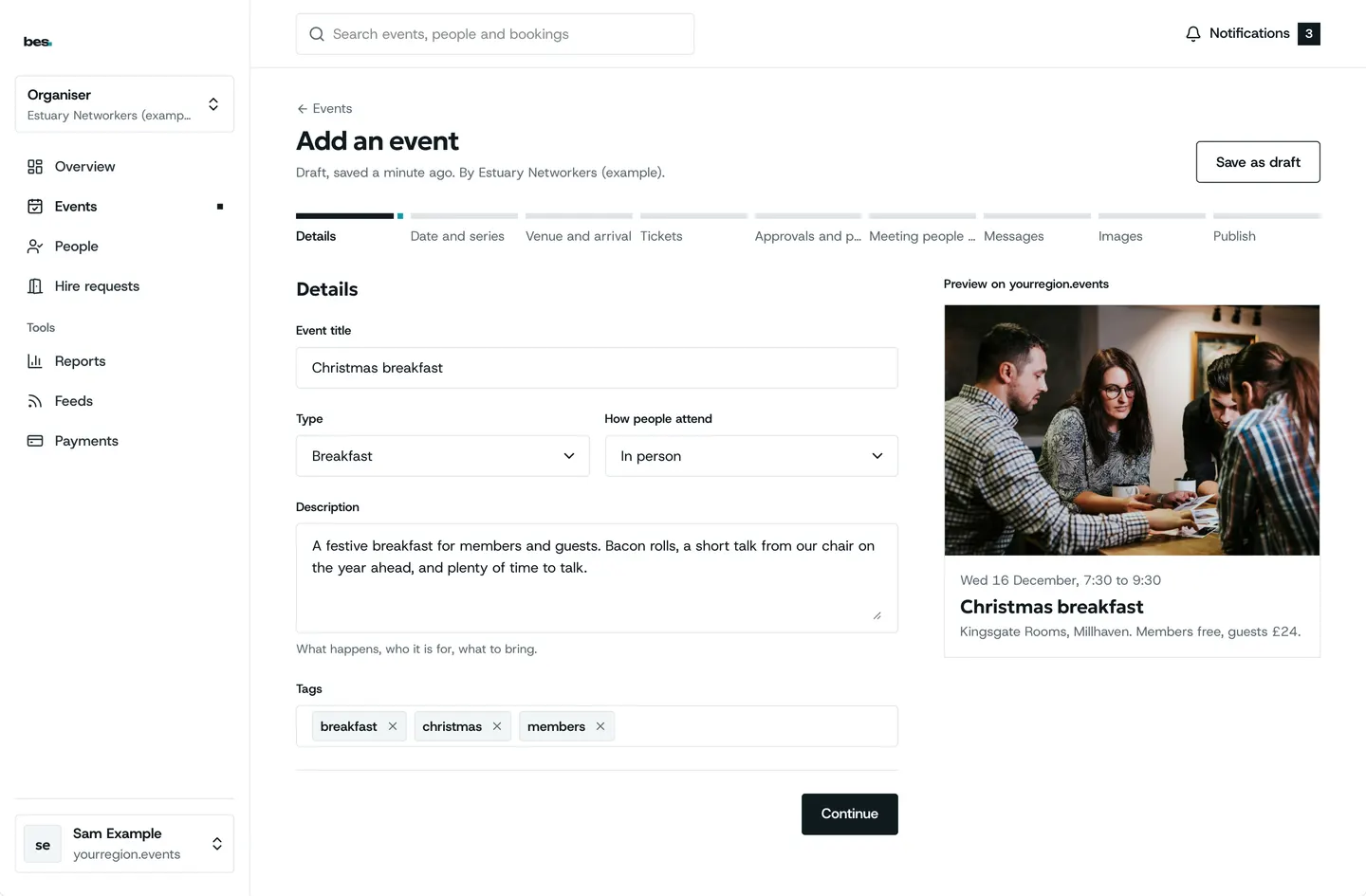
- Your week at a glanceYour home shows what is on this week and the few things that need you: requests, events waiting for review, places to fill.For organisers. 3 steps.Read the guide
- Claim your organisationIf your organisation is already listed, choose Claim on its page; the platform’s team checks and hands it over.For organisers. 2 steps.Read the guide
- Invite your teamTeam, then Invite: give their email and a role, and they get a link.For organisers and venues. 4 steps.Read the guide
Listing an event
9 guides
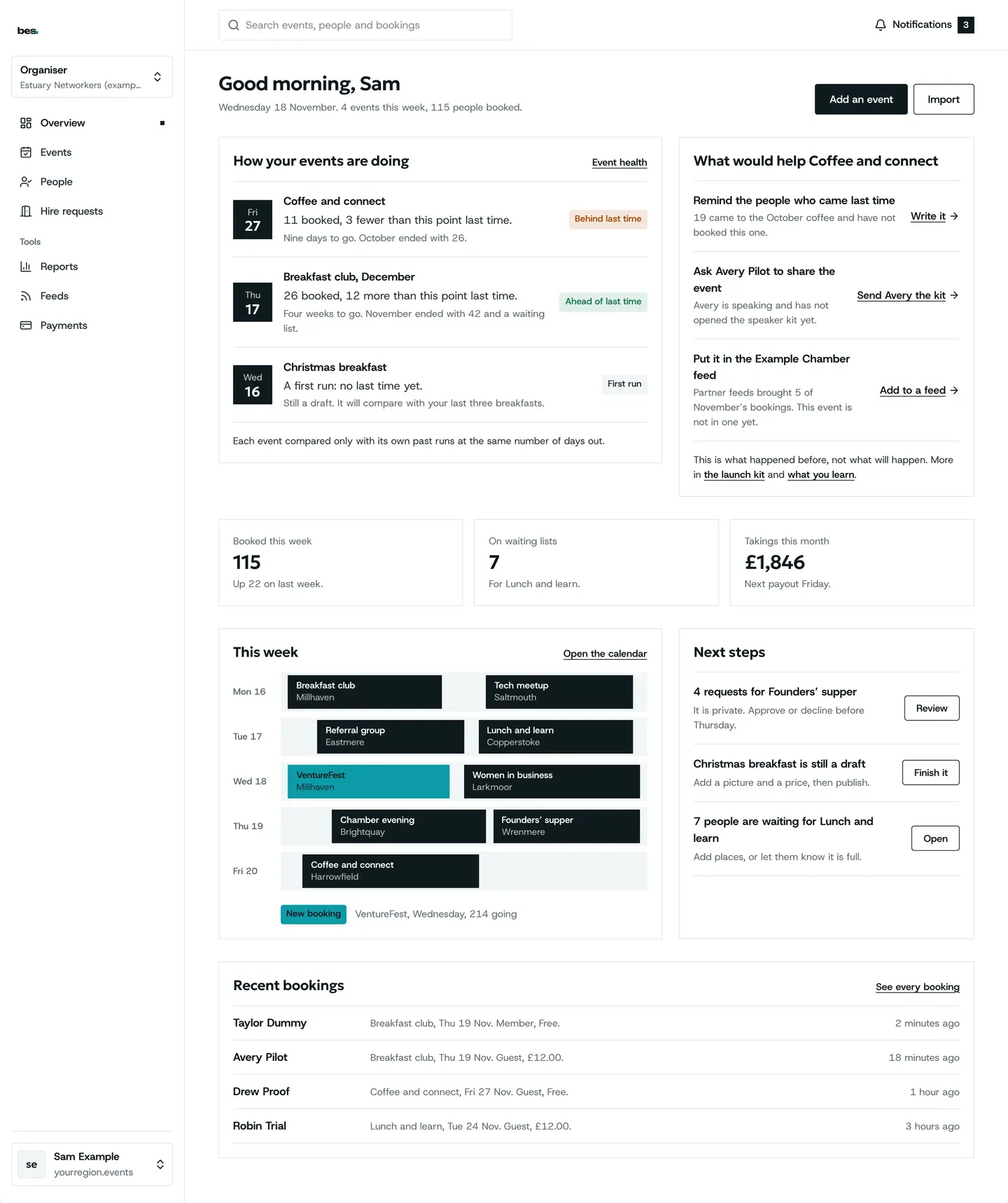
- Publish your first eventAdd an event, fill in the details, date, venue and tickets, then publish.For organisers. 7 steps.Read the guide
- Fill the form from a linkPaste a link to the event on another site and the editor fills in what it can; you check the rest.For organisers. Steps on the way.Read the guide
- Import events from a spreadsheetUpload a spreadsheet, match its columns, check, and import.For organisers. 4 steps.Read the guide
- Copy an eventFrom Events, a row’s menu has Duplicate; change the date and publish.For organisers. 2 steps. Partly in the app.Read the guide
- Repeating eventsIn the editor’s date step, choose Repeats and the pattern; every date shows on one page.For organisers. 2 steps.Read the guide
- Online eventsIn the venue step, choose Online and where it should show.For organisers. 1 step.Read the guide
- Private and members-only eventsIn the editor’s approvals step, choose who can see and book it.For organisers. 1 step.Read the guide
- Events sold elsewhereIn the tickets step, choose Booked on another site and give its address.For organisers. 1 step.Read the guide
- Hire a room for an eventAsk the venue from its page; when it sends a quote, pay online.For organisers. 3 steps.Read the guide
Once it is listed
5 guides
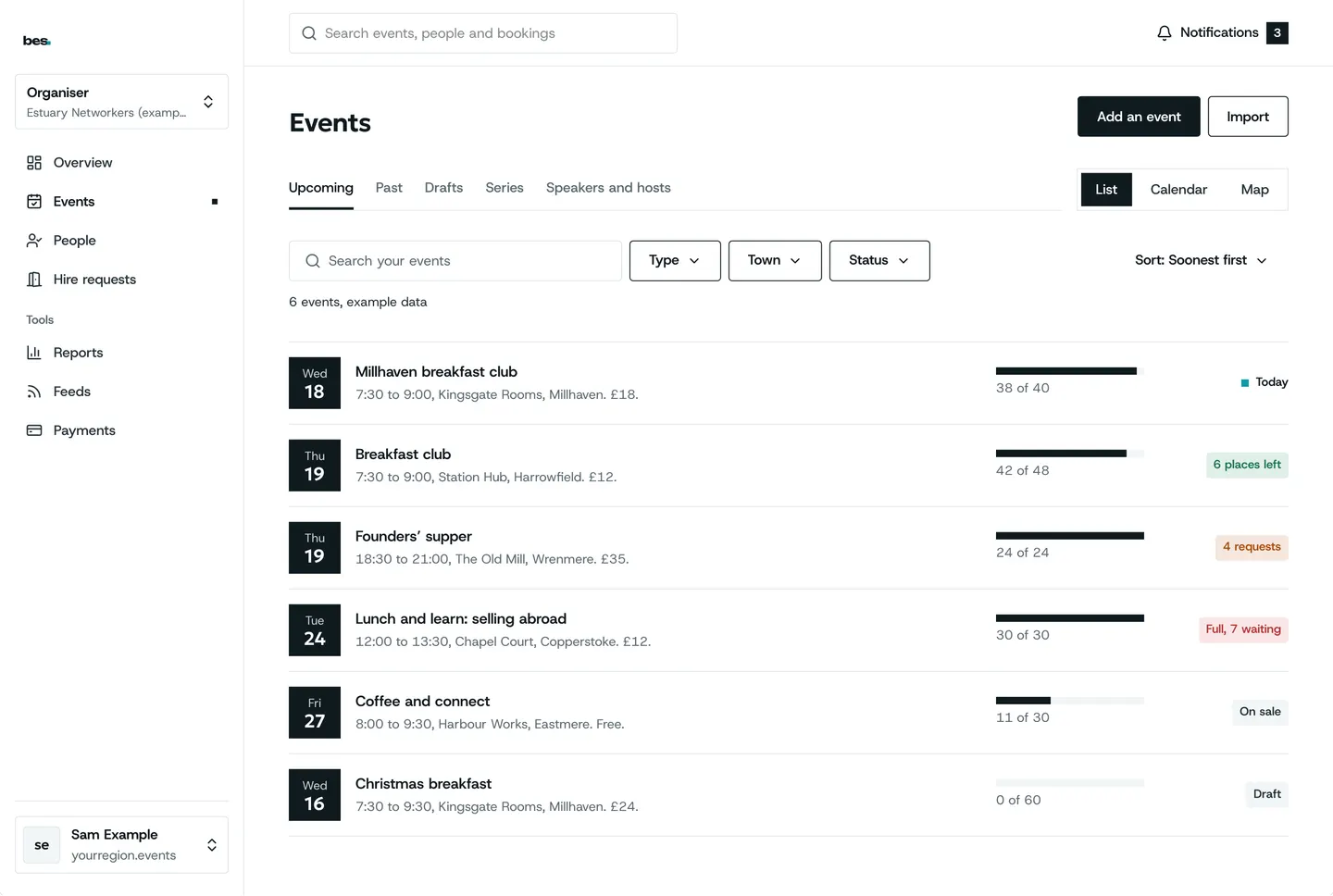
- Your events and each event’s pageEvents lists every event you run, with what each needs; open one for its bookings, tickets, requests, check-in and edit in one place.For organisers. 3 steps.Read the guide
- When an event is reviewedSome platforms check new listings first; if one is sent back, the note says what to change.For organisers. 2 steps.Read the guide
- Move or cancel a dateChange the date in the editor, or Cancel the event from its overview; everyone booked is told.For organisers. 2 steps.Read the guide
- Check for clashesPicking a date shows anything else on that morning nearby.For organisers. 2 steps. Partly in the app.Read the guide
- Download your eventsEvents, then Download, gives a spreadsheet of every event.For organisers. 1 step.Read the guide
Other topics
- Getting started9 guidesOpen
- Finding and booking15 guidesOpen
- Your passes and the day5 guidesOpen
- Calendars3 guidesOpen
- Bookings and tickets9 guidesOpen
- Check-in5 guidesOpen
- Money4 guidesOpen
- Your website4 guidesOpen
- People and reports2 guidesOpen
- Venues and rooms11 guidesOpen
- Your platform23 guidesOpen
- Your data and privacy5 guidesOpen
Still stuck
Ask a person
- Booked on an event
The team that runs your platform can help with bookings and tickets; their address is in every email they send you.
- Running a platform
[email protected]. We usually reply within two working days.
- Something is broken
Report a problem: say what you did and what you saw.
- About your data
Security and your data says what is held and who sees it.