Check people in
Open the event’s door on a phone, scan each pass, and search by name for anyone without one.
For organisers and venues. You need an event today first.
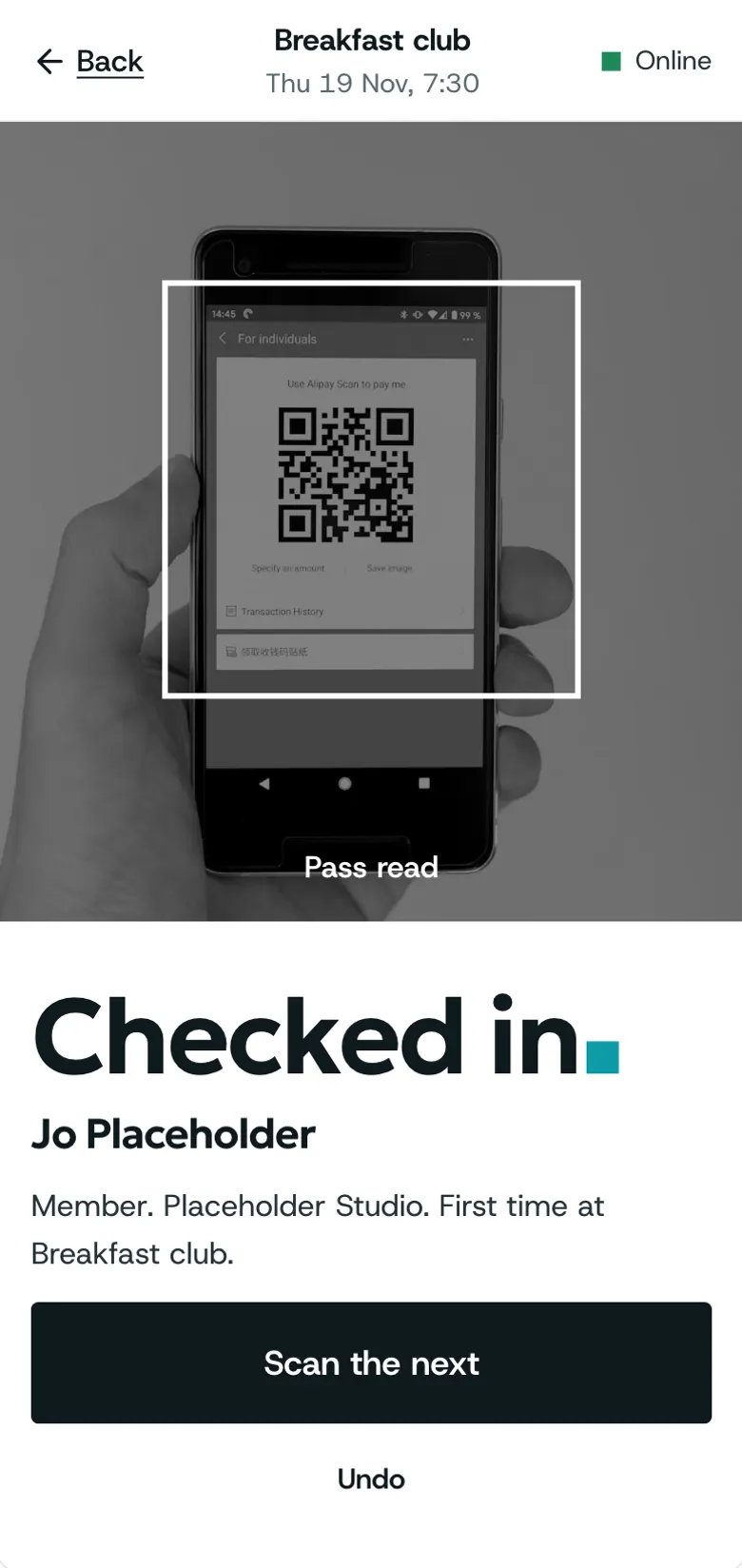
Step by step
Step 1: Open check-in
Open the event and choose check-in. Who is in, and who is still to come, is at the top.
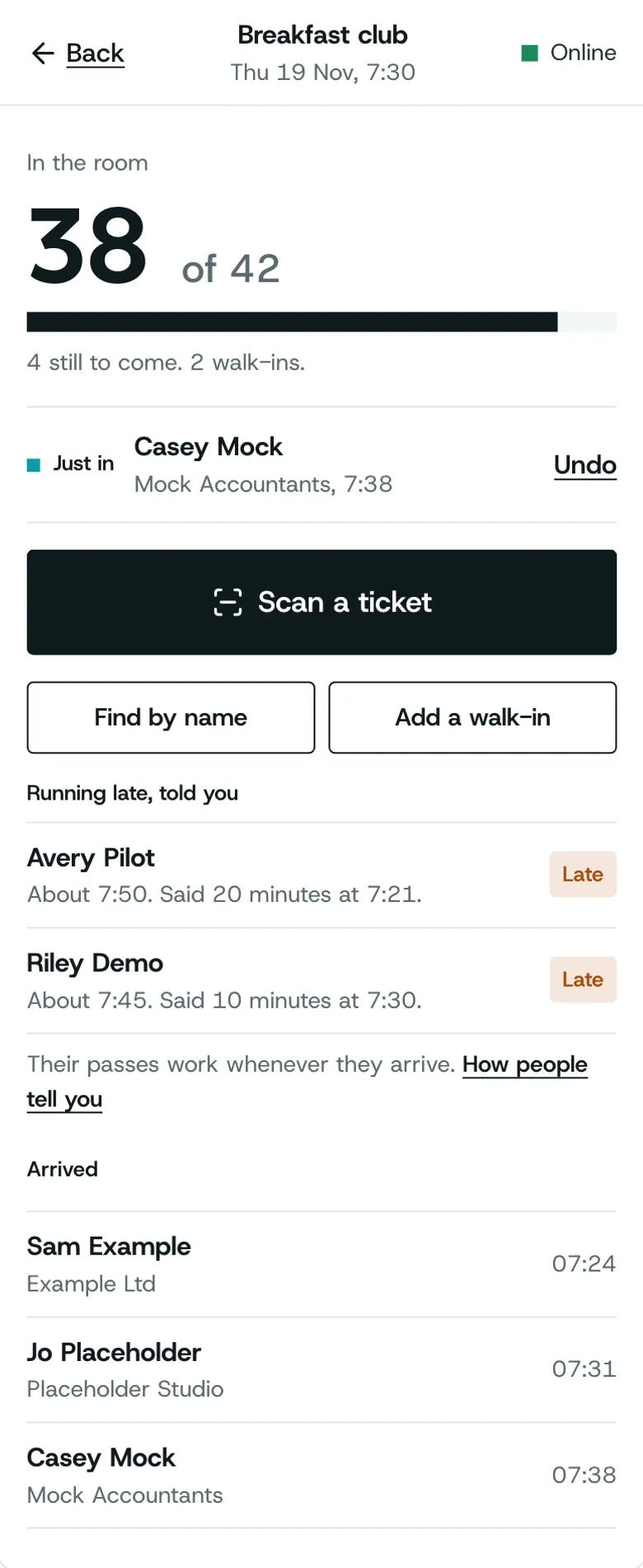
Step 2: Scan a pass
Point the camera at their pass.
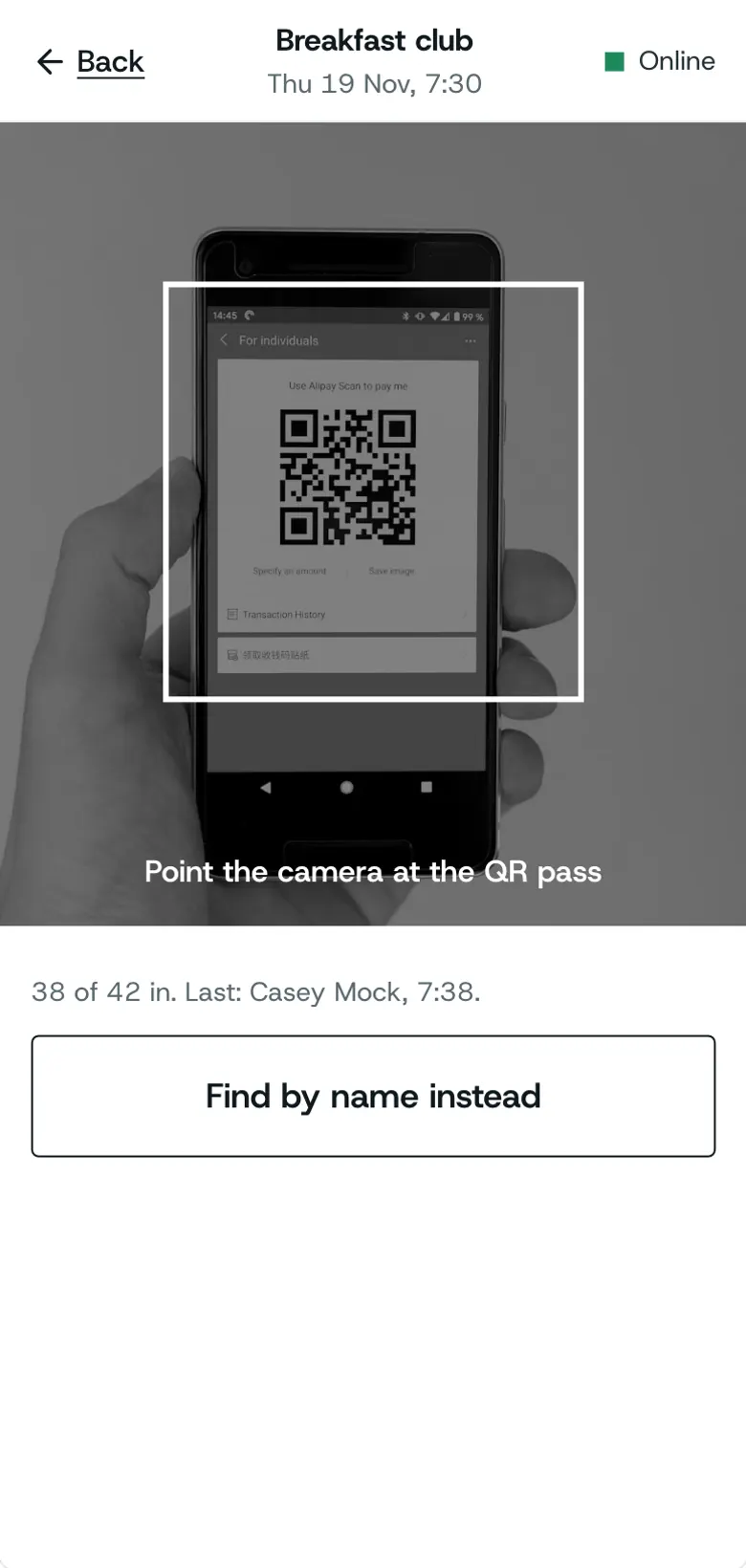
Step 3: They are in
A green tick and their name: they are in. Scan the next one straight away.
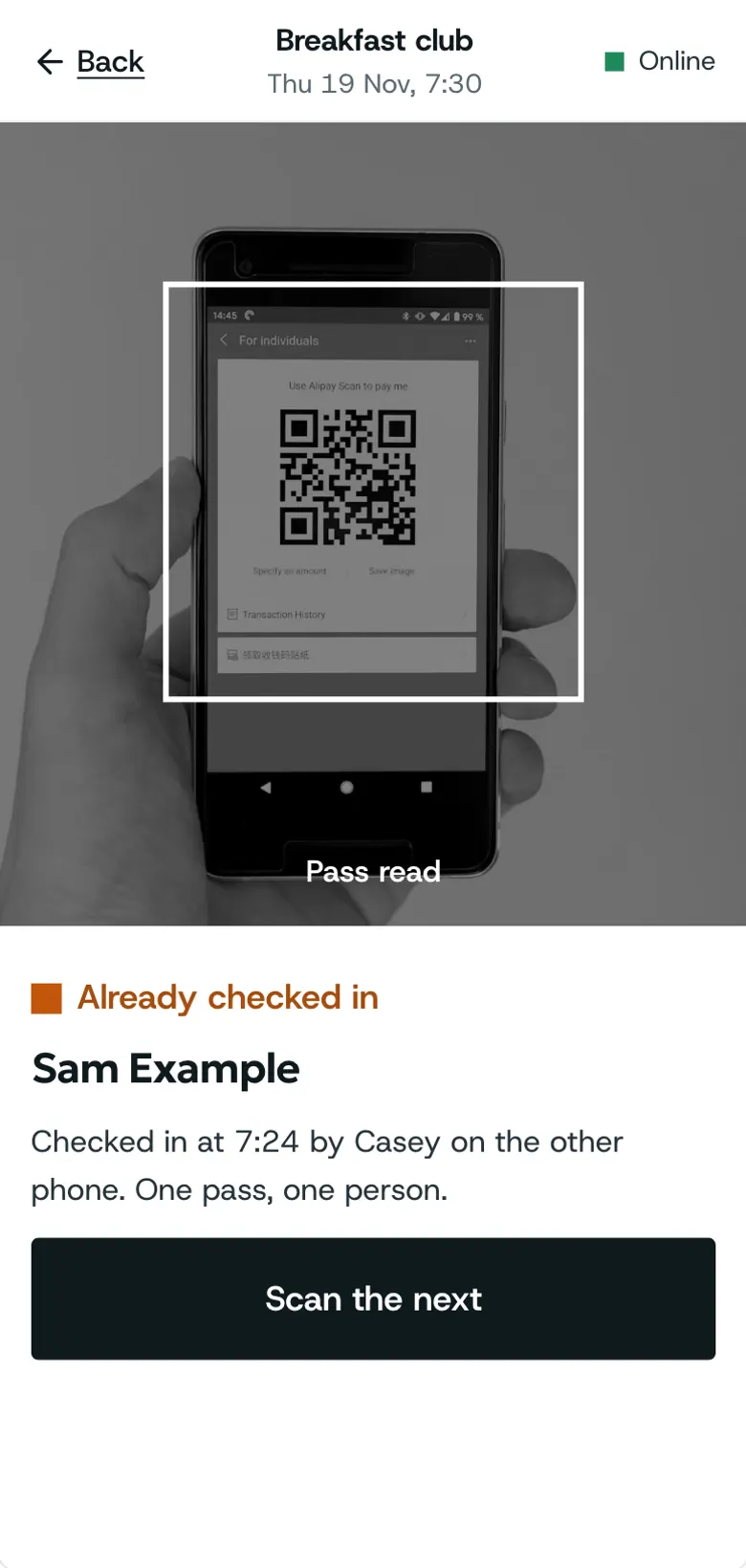
Step 4: Already in
Scanned twice? It says when they came in.
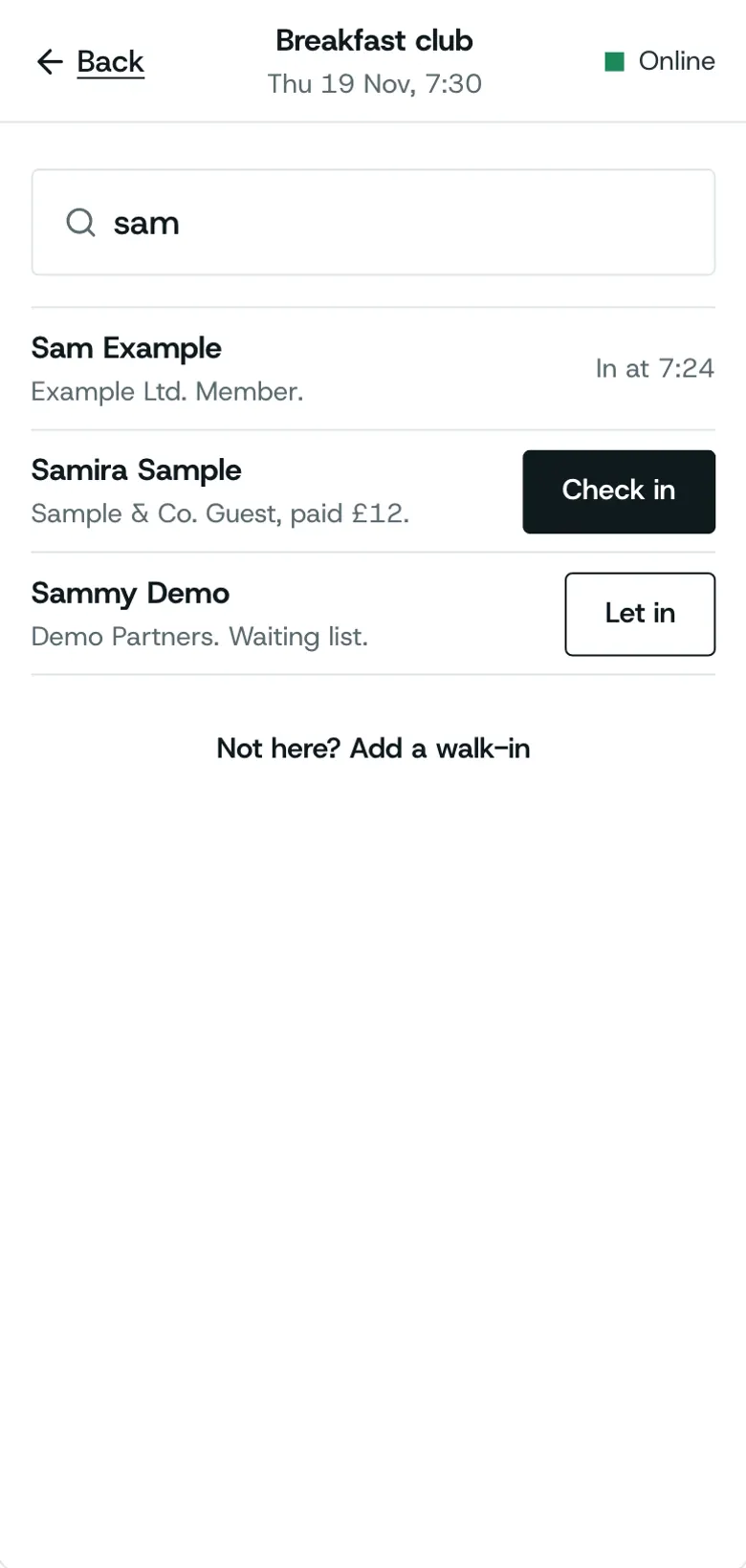
Step 5: Find someone by name
No pass on them? Search by name. Choose Check in beside the right person.
Tips
Open the door before people arrive: it loads the list.
Two phones can share one door.
If something is wrong
If a pass will not scan, read what the scanner says, then search by name.
What the scanner says and what to do
Good to know
Door staff need the door role, which shows check-in and nothing else.
What’s next
- NextYour reportsAnalytics shows bookings, who came and trends, chart first, then every event.Read the guide
- RelatedIf a pass will not scanThe scanner says why in words; most of the time, searching by name fixes it.Read the guide
- RelatedWalk-insSearch by name; if they are not booked, Add a walk-in.Read the guide
- RelatedSeveral phones on one doorEveryone on the door sees the same list; a person scanned on one phone shows as in on the others.Read the guide
More about this on Check-in at the door, one of our feature pages.
Was this helpful?
Reviewed 12 November 2026 and checked against the app that day. General information as at 12 November 2026, not legal, tax or financial advice. Screens show example data.