Create an account
Choose Sign in, then Create an account: give your email, confirm it with the code we send, and you land back where you were.
For people who go, organisers and venues. Nothing needed first.
Step by step
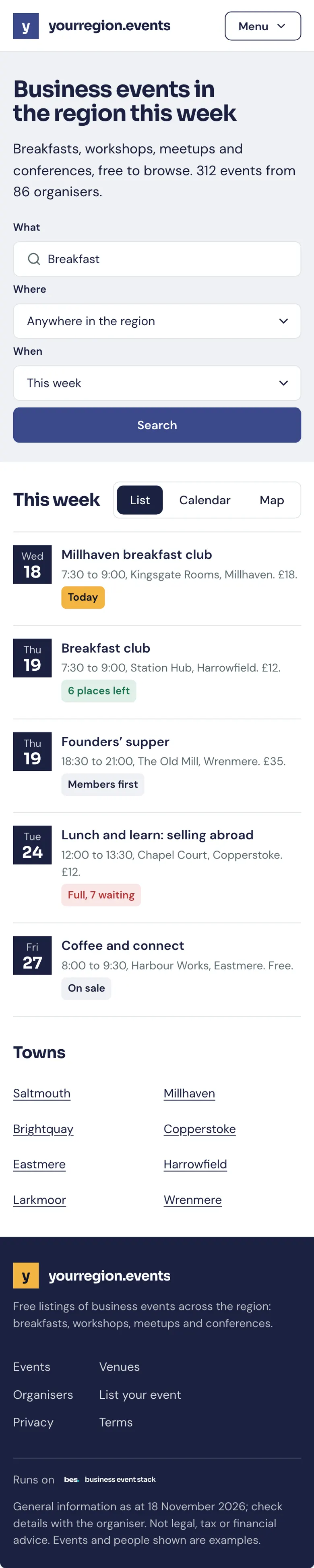
Step 1: Choose Sign in
On any page of the platform, choose Sign in at the top, then Create an account.
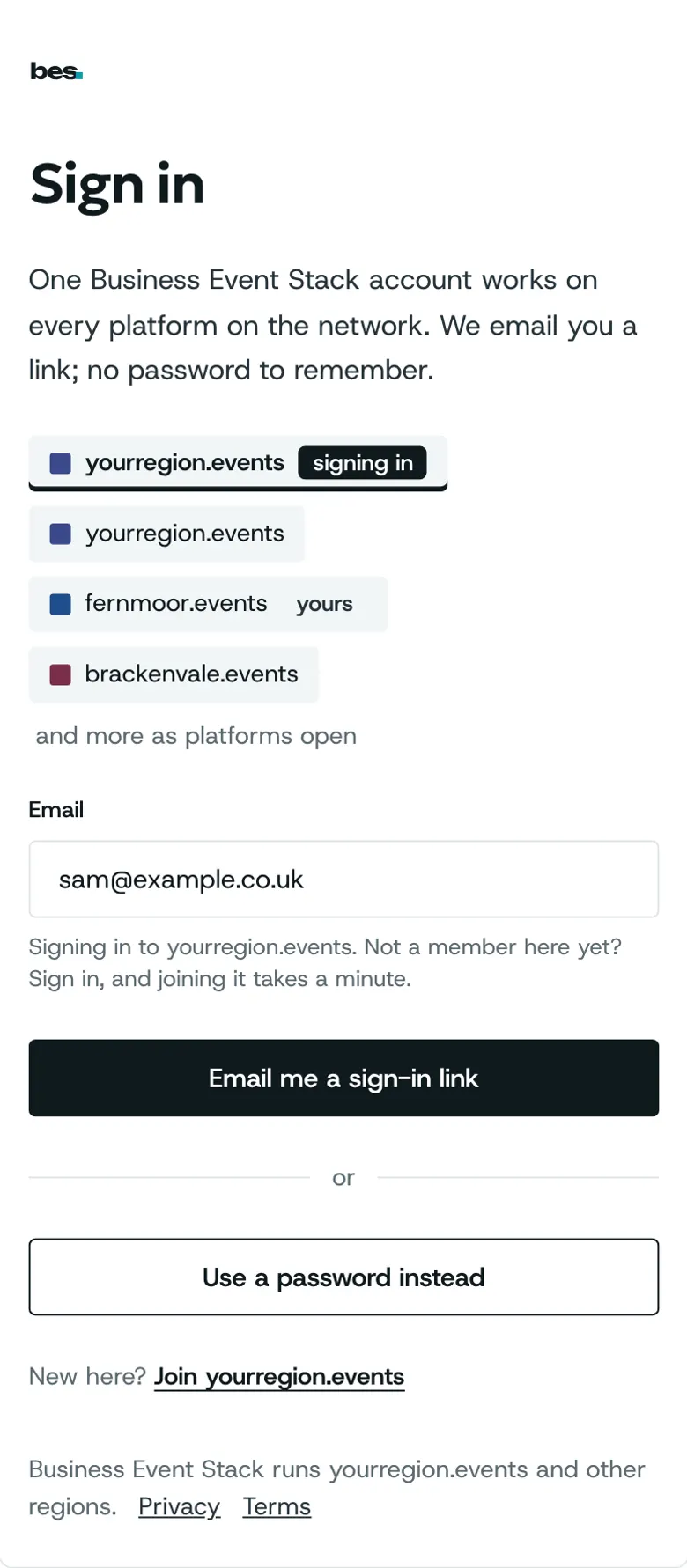
Step 2: Give your email
Type the email you want to use and say what you are here for: going to events, running them or a venue.
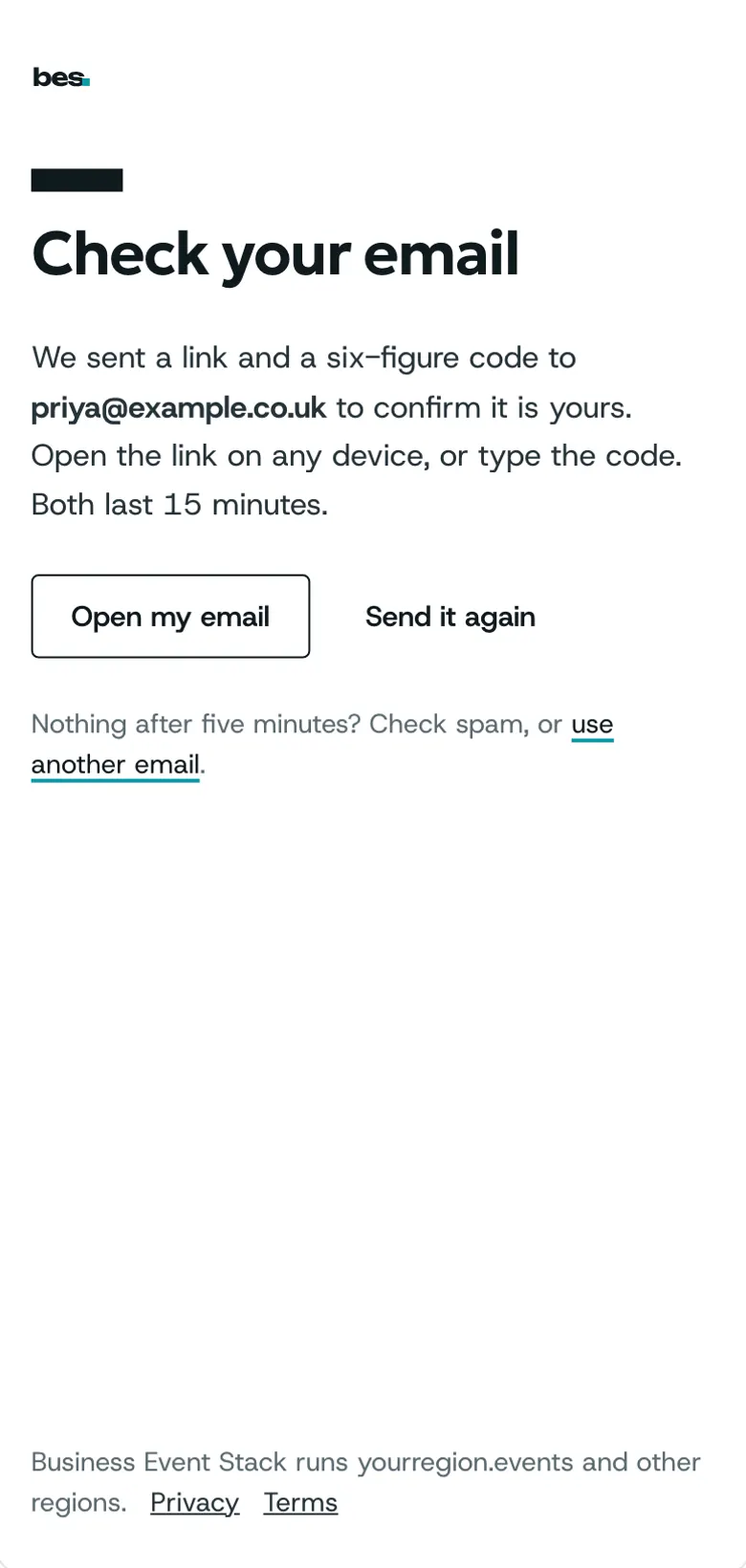
Step 3: Type the code
We send a code to that address. Type it in to show the email is yours.
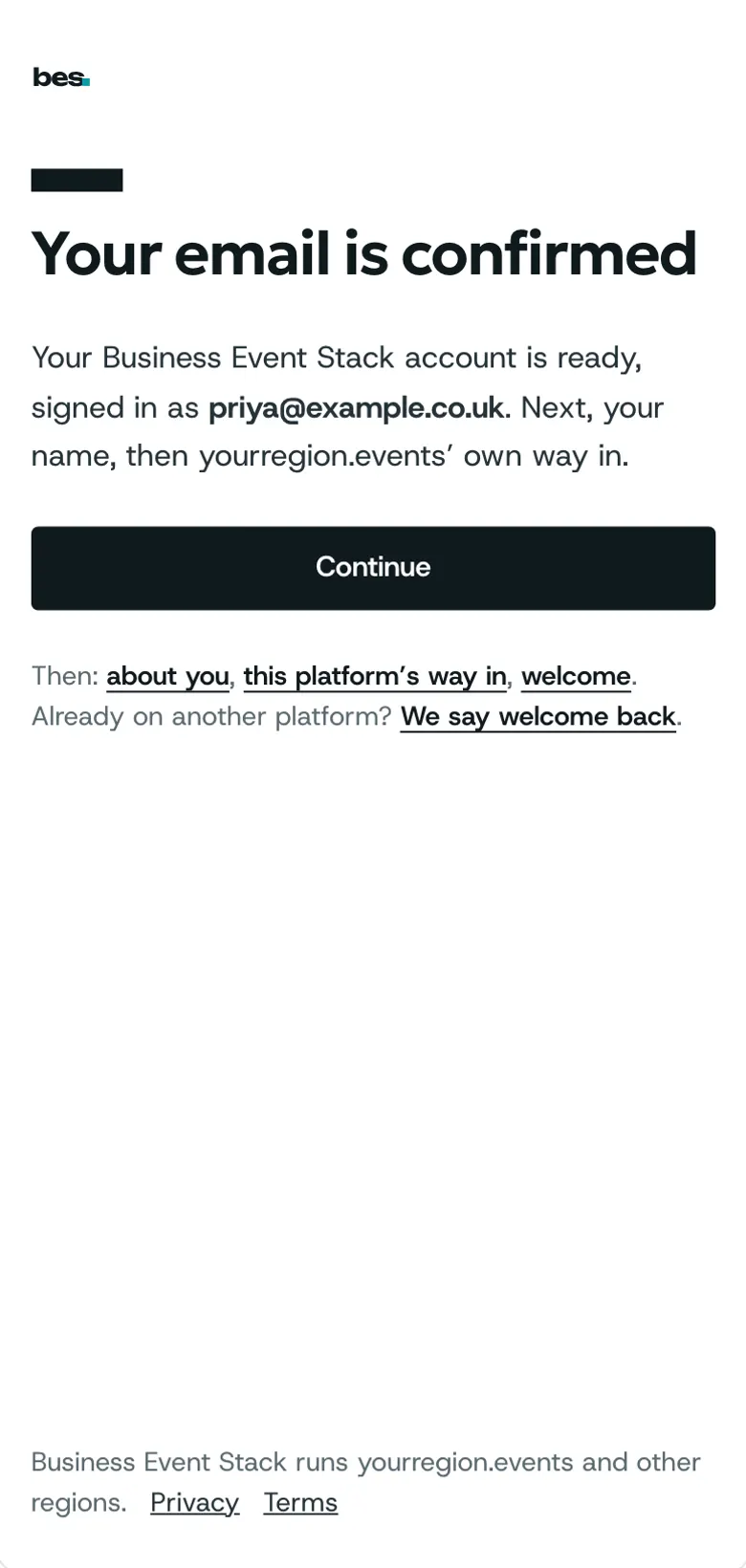
Step 4: You are in
Your email is confirmed and you land back on the event you were booking.
Tips
Use the email your bookings should go to.
You agree the platform’s terms and privacy policy once, here.
If something is wrong
If the email does not arrive within five minutes, look in junk or promotions, then ask for a new code.
If the code says it has expired, ask for a new one; only the newest code works.
Good to know
One account works on every platform that runs on Business Event Stack.
What’s next
- NextFind eventsAll events shows every event as a list, a calendar or a map; search and filters narrow it down.Read the guide
- RelatedSign in, reset or change a passwordSign in with your email and password; reset a forgotten password from Sign in.Read the guide
- RelatedUse your account on another platformSign in with the same email on the other platform; your account comes with you.Read the guide
- RelatedRead a platform’s policiesPolicies, in every page’s footer, lists the platform’s terms, privacy and cookie policies; the version you agreed at sign-up is kept on record.Read the guide
More about this on One account, every platform, one of our feature pages.
Was this helpful?
Reviewed 12 November 2026 and checked against the app that day. General information as at 12 November 2026, not legal, tax or financial advice. Screens show example data.