Sign in, reset or change a password
Sign in with your email and password; reset a forgotten password from Sign in.
For people who go, organisers, venues and platform owners. You need an account first.
Partly in the app.Today you sign in with your email and password; signing in with a link by email is designed, not in the app yet.
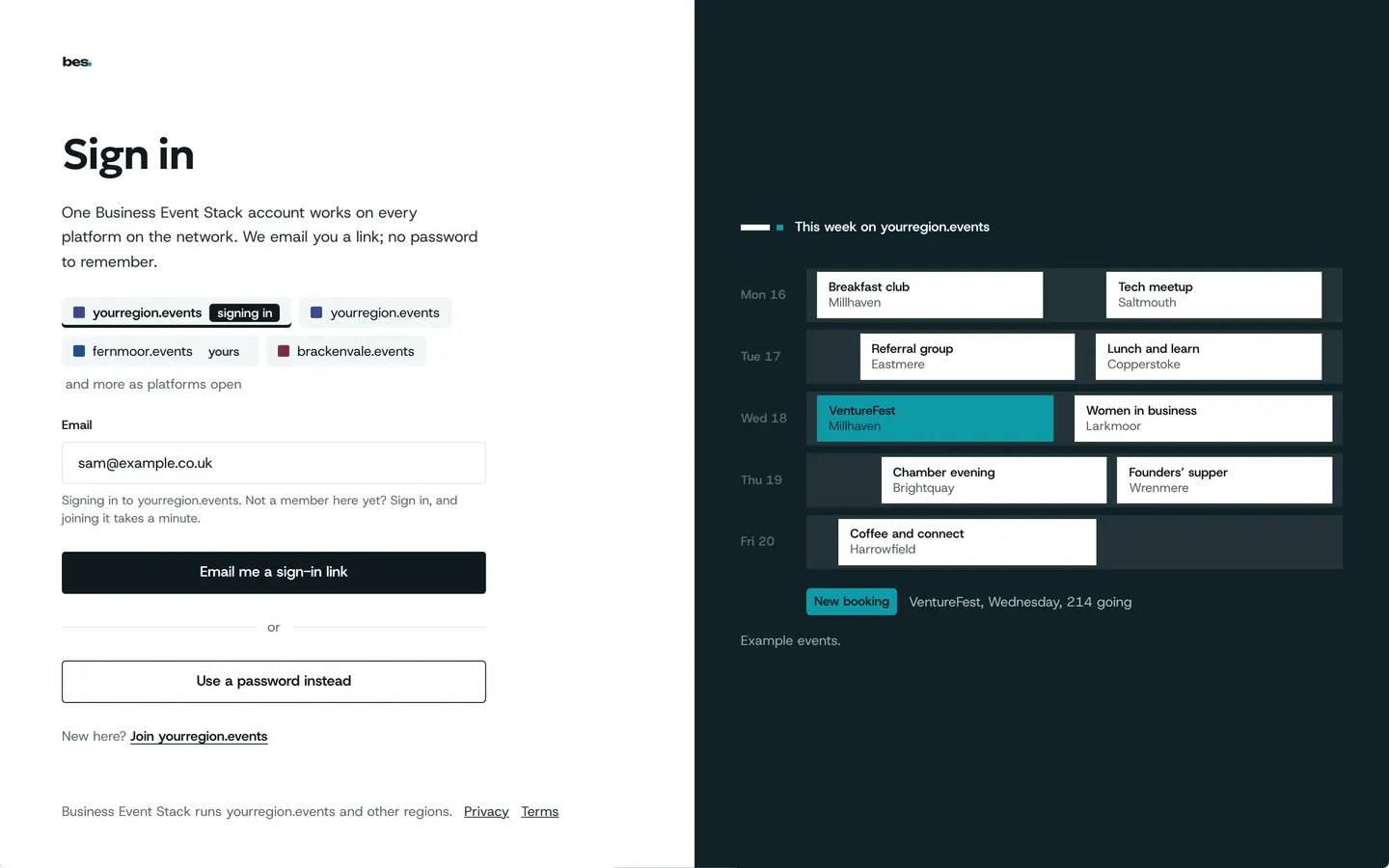
Step by step
Step 1: Sign in
Choose Sign in and give your email and password.
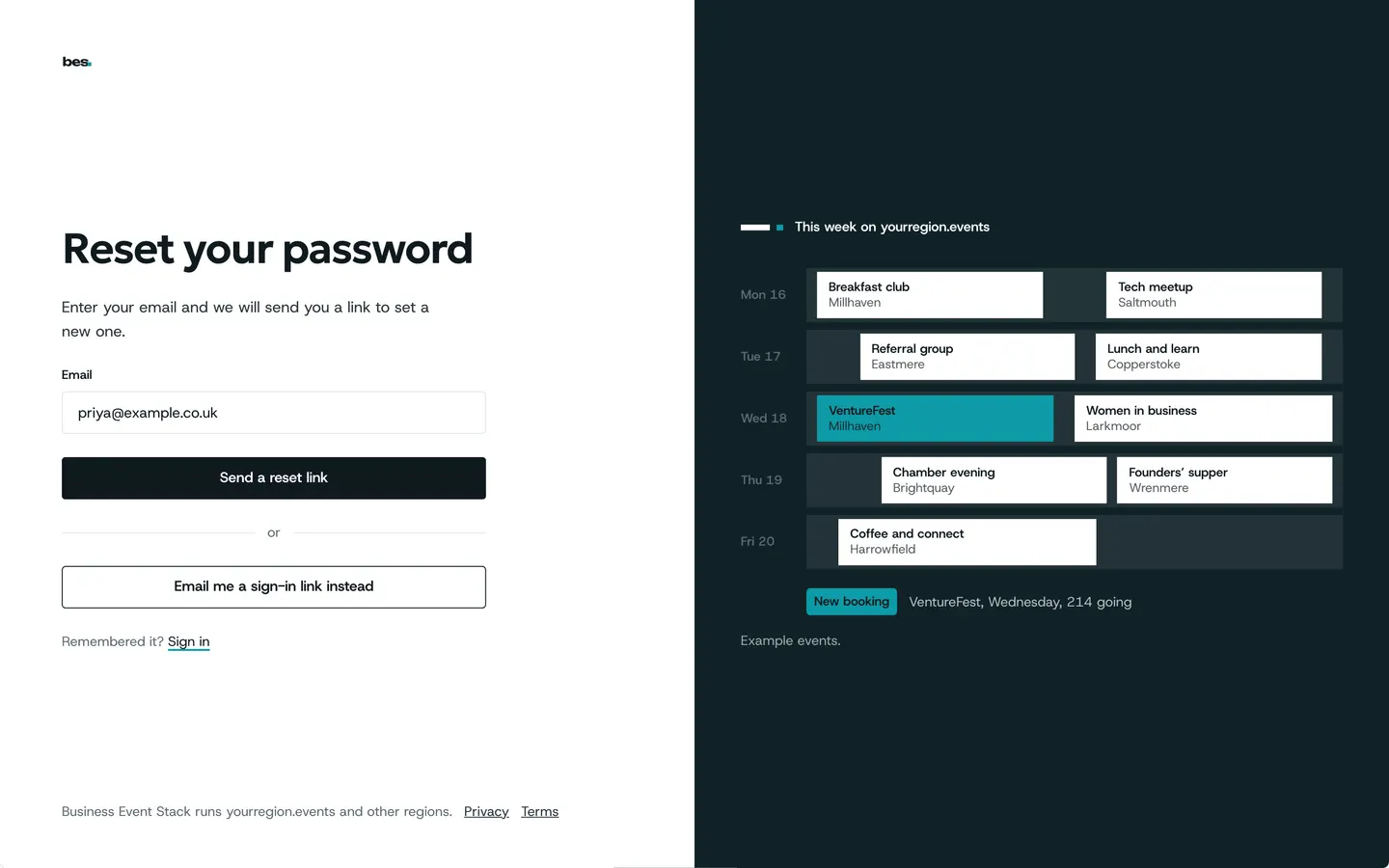
Step 2: Forgotten it
Choose Forgot password and give your email.
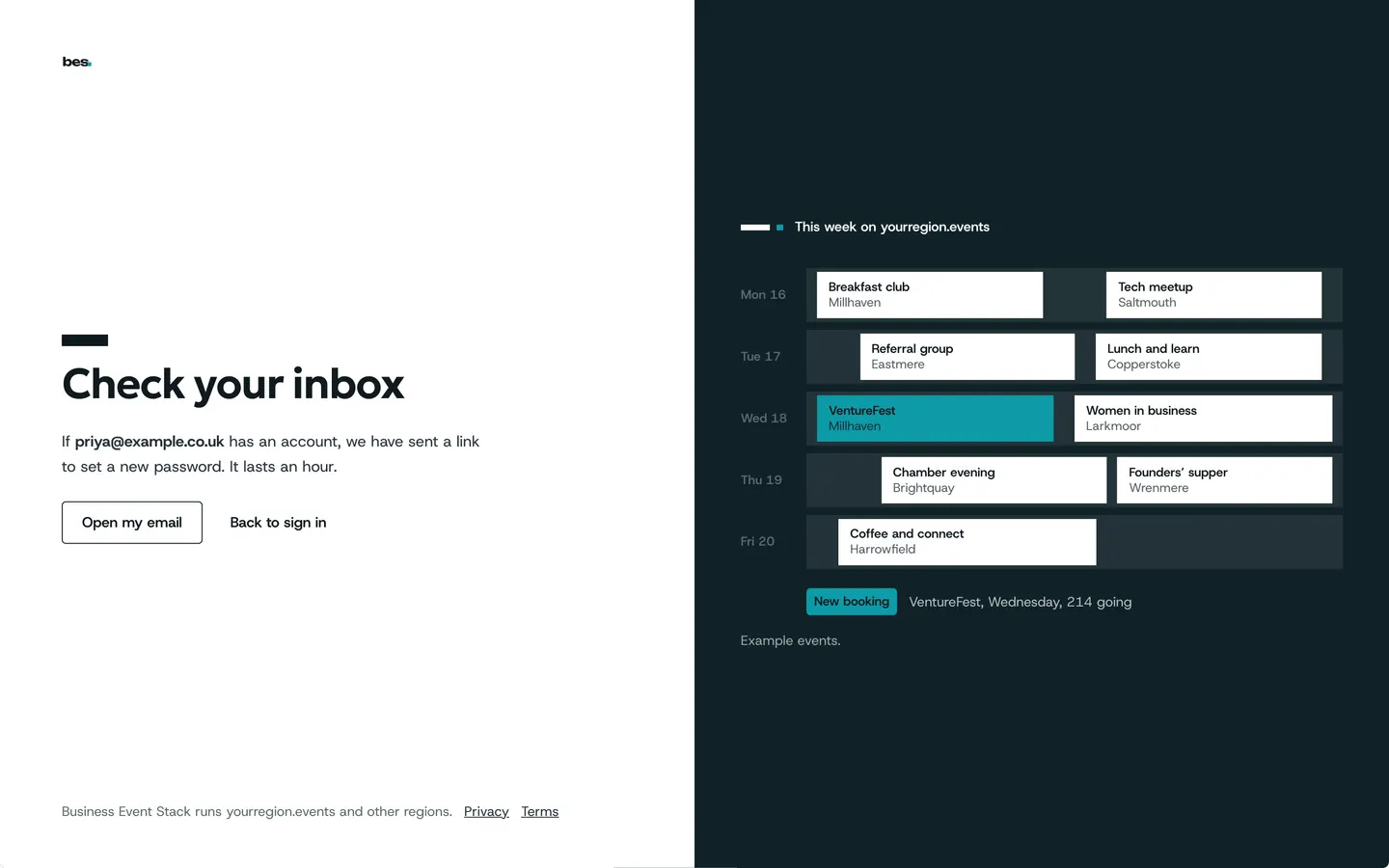
Step 3: Check your email
We send a link to set a new password. It lasts an hour.
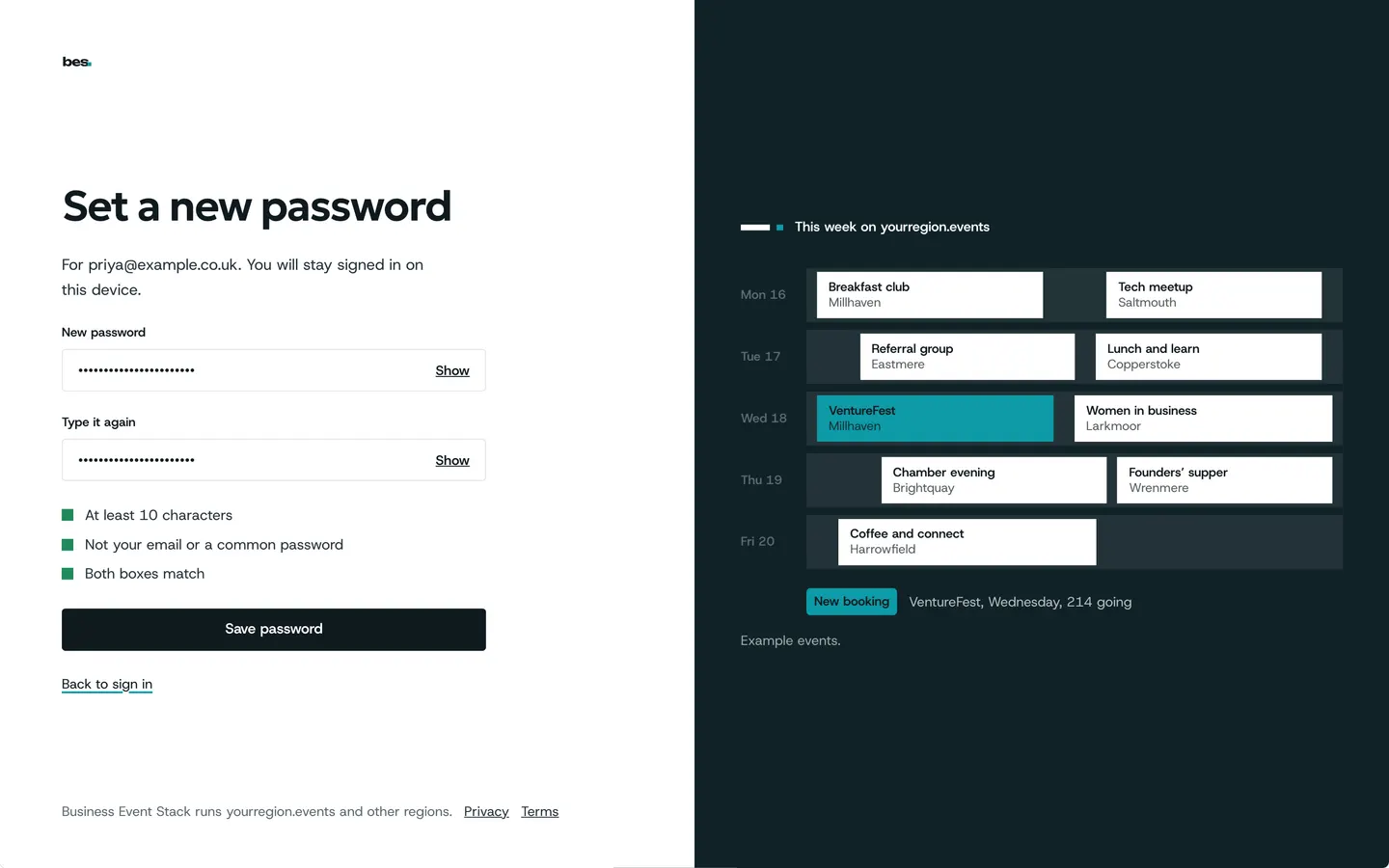
Step 4: Set a new one
Choose a password you do not use anywhere else. It says if it is too weak.
Step 5: Change it later
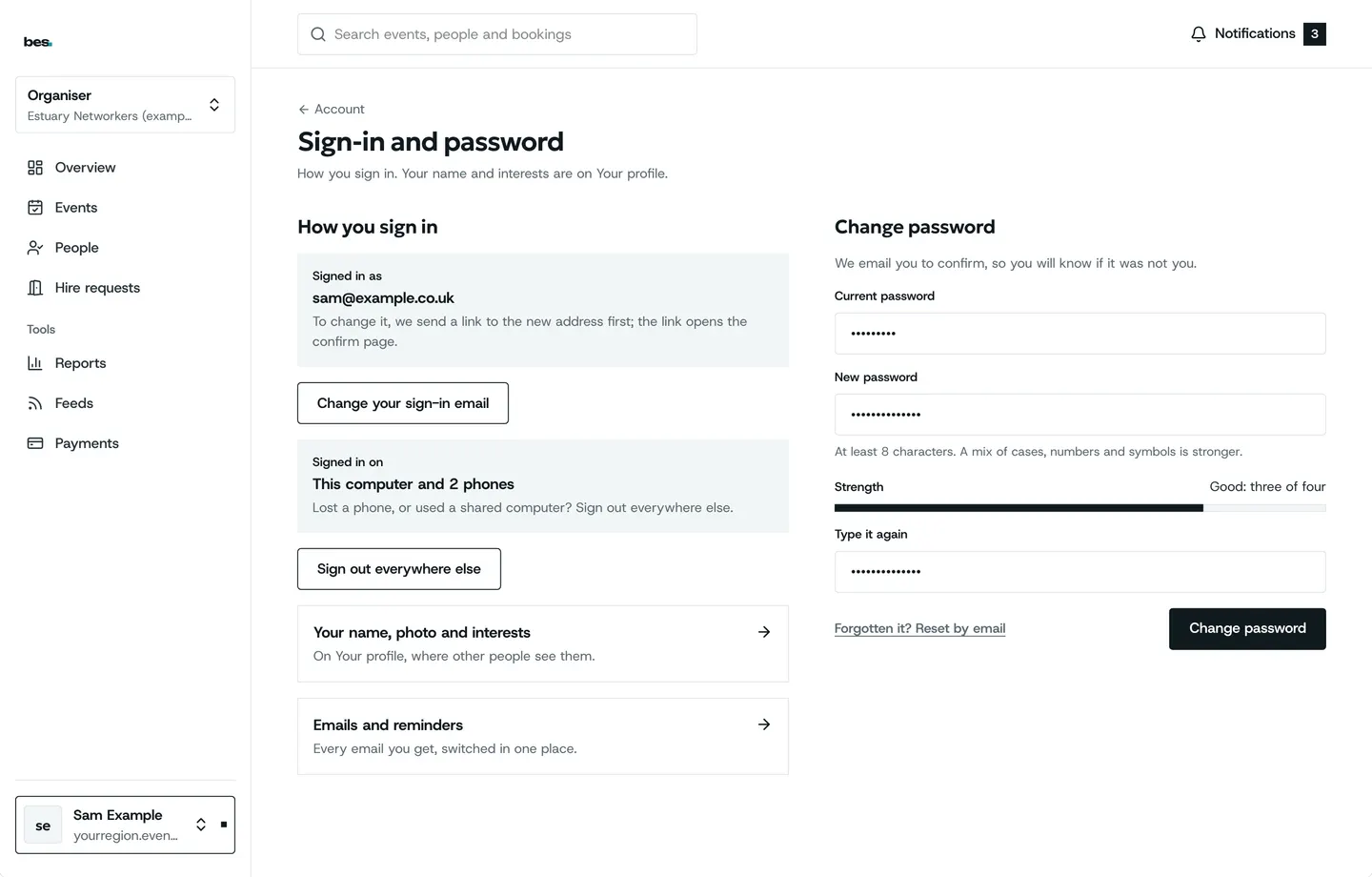
Signed in, open Account, then Sign-in and password, to change it. We email you to say it changed.
Tips
The same email and password work on every platform in the network.
If something is wrong
If the reset link says it has expired, ask for a new one; only the newest link works.
If it says the password is weak, make it longer: three unrelated words work well.
Related guides
- RelatedCreate an accountChoose Sign in, then Create an account: give your email, confirm it with the code we send, and you land back where you were.Read the guide
- RelatedYour account and settingsAccount holds what only you see: your name and job, your sign-in email and password, your time zone and which emails you get.Read the guide
More about this on One account, every platform, one of our feature pages.
Was this helpful?
Reviewed 12 November 2026 and checked against the app that day. General information as at 12 November 2026, not legal, tax or financial advice. Screens show example data.